Click Up: The project management backbone your business can actually run on
From scattered projects to one clear system
If you’re running a business today, chances are your work lives everywhere:
- A few to‑dos in your head
- Some notes in a docs tool
- Spreadsheets with “project overviews” that are outdated the moment you close them
- WhatsApp, email, Slack or Teams messages with half the decisions
It works… until it doesn’t.
At some point, projects start slipping, small tasks get forgotten, and you spend more time searching for information than actually moving things forward.
That’s exactly the point where a real project management tool stops being a “nice to have” and becomes non‑negotiable.
For me, that tool is ClickUp.
ClickUp is not just another app on the pile. It’s the place where your projects, tasks, communication, and follow‑up come together in one structure that serves both you and your team.
In this article, I’ll walk you through what ClickUp actually is, what you can do with it, how pricing really works, and how I personally approached the move from the free version to a paid plan.
What ClickUp actually is
ClickUp calls itself an all‑in‑one productivity platform. In practice, I see it as a digital operating system for your projects and operations.
A few key building blocks:
- Workspaces, Spaces and Folders – The high‑level structure of your business: departments, clients, internal projects.
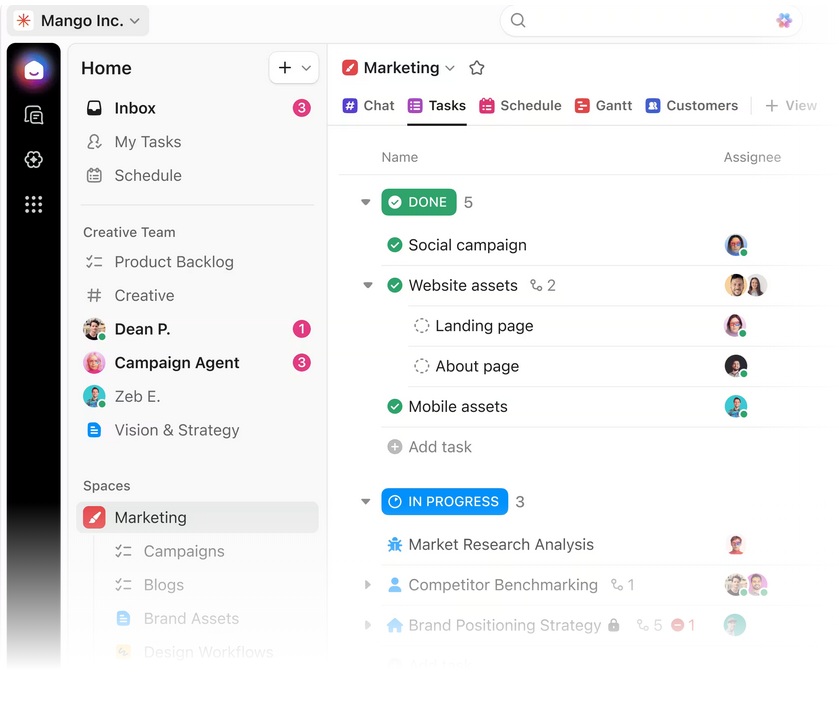
- Lists and Tasks – Where the actual work lives. Every project breaks down into tasks with owners, due dates, priorities and subtasks.
- Views (List, Board, Calendar, Timeline, etc.) – Different ways to look at the same work: from a simple list to Kanban boards and timelines.
- Docs and Whiteboards – Notes, procedures, meeting notes and brainstorms directly connected to the work they belong to.
- Dashboards – Overviews of what’s going on: workload, progress, upcoming deadlines, key metrics.
- Automations and templates – Rules and reusable structures that remove repetitive work.
In the Management and Operations and Project Management pages, we talked about turning chaos into a clear rhythm: planning, organizing, leading, evaluating – and turning ideas into predictable progress.
ClickUp is where that theory becomes tangible. It’s the tool that lets you:
- Capture projects in one place
- Break them into clear, assignable tasks
- Keep communication attached to the work
- See progress without chasing people
Whether you’re a solopreneur or leading a small team, ClickUp gives you one shared picture of what’s happening. A farely recent feature is the integration of AI through ClickUp Brain and the use of Super Agents. – Those wearing the silly masks you see depicted in the logo below – a badge of honour for ClickUp Nerds like myself.
ClickUp features that matter
There are dozens of feature pages on the official ClickUp website. I’ll keep it practical and focus on what actually makes a difference day to day.
1. Clear structure for all your projects
You can organize your business in a way that mirrors reality:
- A Space for your own business
- Separate Spaces for each major client or business line
- Folders for themes such as marketing, operations, product, finance
- Lists for specific projects or repeatable workflows
This means you always know where a project lives and where to put new work. No more “random tasks” scattered across tools.

2. Tasks that carry context, not just titles
Each task in ClickUp can include:
- A clear description
- Assignees and due dates
- Subtasks and checklists
- Attachments, comments, and links to Docs
- Custom fields for anything important in your business (priority, client, budget, status, …)
This turns a vague to‑do (“Fix website”) into a living unit of work: broken down, owned by someone, with everything needed to actually get it done.
3. Multiple views on the same reality
Some people think best in lists, others in boards or timelines.
ClickUp lets you switch between:
- List view – clean overview of tasks, perfect for detailed planning.
- Board view – Kanban style columns (To do / Doing / Done, or your own stages).
- Calendar view – what’s due when.
- Gantt / Timeline – dependencies and long‑running projects.
It’s all the same data, just different angles. That flexibility is a big reason I like ClickUp for both solo work and team collaboration.
4. Built‑in documentation and communication
Instead of spreading information over emails, chats and random documents, you can keep it close to the work:
- Meeting notes live in Docs linked to the relevant project or tasks
- Decisions are documented in comments
- Updates happen directly on the task that’s being discussed
That means less searching, fewer misunderstandings, and a much easier handover when someone new joins the project.
5. Templates and automations for repeatable work
Projects rarely happen just once. Campaigns, launches, onboarding, recurring processes – they come back in slightly different shapes.
In ClickUp you can:
- Save project structures as templates (lists, tasks, subtasks)
- Use automations to assign people, set dates or move tasks when conditions are met
Once you’ve set up a good structure, every new project becomes faster and more consistent.
ClickUp pricing plan
ClickUp offers several plans. The details and exact numbers can change over time (always check the official ClickUp pricing page for the latest info), but the overall structure looks like this:
- Free Forever – Start here. Great to try ClickUp seriously and even run real projects.
- Unlimited – The first paid step, usually for small teams that need more advanced features without going all‑in yet.
- Business – The plan I personally jumped to. It unlocks more security, automations, advanced views and control, ideal for small teams and growing operations.
- Business Plus / Enterprise – For larger teams that need advanced permissions, scaling and deeper administration.
Instead of memorizing every feature per plan, I like to look at it this way:
The free version is to test ClickUp in your real life.
The paid versions are to make ClickUp the backbone of your business.
For most solopreneurs and small teams, the interesting question is: How far do you get with Free, and when does it make sense to upgrade? In the end I switched from the free version, straight into the Business plan. It was actually a no brainer. These tools can come at a cost but mainly for big teams. The guest feature is a great way to host a workspace as a solopreneur or small team and still get the benefits of a team setup at a very low cost.
The Free Forever Plan: Powerful but with limits
One of the things I loved most about ClickUp from the start: you can use the Free Forever plan without a time limit.
No “your trial expires in 14 days”. No pressure to upgrade before you even understand how the tool fits your business.
On the free plan you can typically:
- Create real workspaces, spaces, lists and tasks
- Use core views like List and Board
- Collaborate with others
- Use basic docs and comments
In other words: you can actually run projects, not just play around.
But of course, there are limitations. You’ll run into things like:
- Limits in storage – fine at the start, restrictive once you attach lots of files
- Limits on certain advanced views and features
- Caps on automations and some of the more powerful workflow options
- Restrictions around more advanced permissions and security
The exact numbers can change, but the pattern is clear: the free plan is generous for trying ClickUp properly, but it doesn’t pretend to be a forever solution for a growing, tool‑driven business.
And that’s actually what makes it useful.
My personal upgrade rule: 5 limitations
When I started with ClickUp, I consciously stayed on the free plan first. I wanted to test if it would really fit the way I think about management, operations and project management.
I gave myself a simple rule:
“If I run into five meaningful limitations, I’ll upgrade.”
Not theoretical limitations I read about on a pricing page, but real blockers in my day‑to‑day work.
I never got to five.
By the time I hit four limitations, I was already completely convinced of ClickUp’s value and I upgraded straight to the Business plan.
Why Business?
- I wanted the flexibility of more advanced views and automations.
- I needed a structure that could support both my own work and collaborations with others.
- I treat tools as part of my operational backbone, not as an afterthought. If a tool saves me hours every week, upgrading is a no‑brainer.
For solopreneurs and small teams, that’s really how I look at it:
If your projects live in ClickUp, you’re not just paying for software. You’re paying for clarity, predictability and headspace.
Compared to the cost of chaotic projects, missed deadlines, or constantly reinventing your “system”, the monthly fee sits in the “no‑brainer” category.

Is ClickUp worth it for solopreneurs and small teams?
Short answer: yes, if you’re serious about managing your work instead of surviving it.
For solopreneurs, ClickUp gives you:
- One place for client work, content, internal projects and admin
- A way to separate thinking (Docs) from doing (Tasks) while keeping them linked
- A simple overview of what really matters this week
For small teams, ClickUp adds:
- Shared visibility: everyone sees the same board, list or dashboard
- Clear ownership: who does what, by when, and with which priority
- Better communication: fewer “Did you see my email?” and more “Check the task, it’s all there.”
You don’t need a huge team to benefit from this. Even with two or three people, the difference between “everyone in their own tools” and “one shared system” is massive.
How I recommend you start with ClickUp
If you want to give ClickUp a real chance, don’t just create an account and click around for ten minutes.
Here’s a simple way to test it properly:
- Pick one real project you’re working on right now (client project, campaign, internal improvement).
- Create a Space and List in ClickUp just for that project.
- Define the outcome: what does “done” look like for this project?
- Break it down into tasks and subtasks, following the project management principles we talked about earlier.
- Assign owners and dates – even if it’s just you, be explicit.
- Use comments and Docs to keep all context inside ClickUp.
Work in it for a few weeks and notice:
- Do you feel more in control?
- Are you searching less and executing more?
- Is it easier to see what’s stuck and what’s moving?
If the answer is yes, that’s when the pricing question becomes very simple: you either stay on Free a bit longer or you upgrade to unlock the features that match how you’re using the tool.
Final thoughts: just try it
No article can fully replace the experience of actually working in ClickUp with your own projects, clients and deadlines.
What I can tell you from my own journey is this:
- ClickUp fits naturally with the way I think about management and operations.
- It turns project management from a theory into something I can see, adjust and rely on every day.
- The Free Forever plan gave me enough room to test it seriously without pressure.
- By the time I reached a handful of real limitations, upgrading to Business was an easy decision.
If you recognize yourself in the chaos of too many projects, scattered tools and constant context switching, then ClickUp is absolutely worth trying.
Use the button or link on this page to start your own free ClickUp workspace, explore it with a real project, and see how far it takes your management and operations.
Try ClickUp, push it to its limits, and decide based on experience – not theory.